Setting up 2FA
You can secure your account with 2FA using Authly, Google Authenticator, or any authenticator app
- Log in to your website and click your profile name (top right)
- Scroll down to Admin 2FA
- Enable the checkbox and save your changes
- A QR code will appear, scan it with your phones camera which will then open your authenticator app and add a 2FA code
- Log out and log back in, you’ll be prompted for a 2FA code
Your trusted device will not ask for a 2FA code again for the next 30 days
- You’ll only be asked for a 2FA code on unrecognized devices
- You can forget all trusted devices or revoke individual ones at any time

Forcing 2FA - All Admins and Shop Managers
You can force all Admins and Shop managers to have 2FA enabled before viewing any sensitive pages by enabling the feature under Extensions:

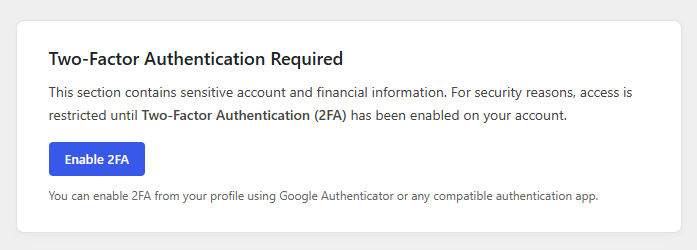
On any sensitive pages the below will show which will send them to the 2FA Setup menu under their profile and will restrict access to the page: